Animating Stuff
Now that you are familiar with the basics of WebGL, it’s time to move on to something more exciting — animation.
In an earlier chapter on the basics of Computer Graphics, we discussed what animation really means. We learned that animation is essentially the illusion of motion, created by displaying many continuous images (frames) in rapid succession.
In this chapter, we’ll revisit that idea, but this time we’ll focus on how to achieve animation using JavaScript. You’ll see how static drawings can be updated frame by frame to create motion, and how WebGL fits naturally into this process.
Key steps involved in any animation
No matter what you are animating — a moving point, a rotating triangle, or a complex scene — the underlying process always follows the same pattern:
Calculate the current frame
Compute positions, colors, transformations, or any other values needed for this frame.Display the frame
Render the calculated data to the screen.Calculate the next frame
Update values slightly (for example, move an object forward in time).Erase the previous frame
Clear the canvas so old pixels don’t interfere with the new frame.Draw the next frame
Render the updated scene.Repeat these steps continuously
Doing this again and again creates the illusion of motion.
How to achieve this in JavaScript
For this chapter, create a fresh HTML and JavaScript setup.
index.html
<!DOCTYPE html>
<html lang="en">
  <head>
    <meta charset="UTF-8" />
    <meta name="viewport" content="width=device-width, initial-scale=1.0" />
    <title>Document</title>
  </head>
  <body style="margin: 0">
    <canvas></canvas>
    <script src="./script.js"></script>
  </body>
</html>
The JS file is currently empty hence I am not pasting it here, from here onwards we will be working in the JS file only.
The requestAnimationFrame function
The JavaScript window object1 provides a non-blocking function2 that allows you to do something over and over again, which is exactly what we need for animation. This function is called requestAnimationFrame.
Let’s first see how it is used, and then we’ll understand how it actually works.
function animate() {
  console.log("Animate function called");
}
requestAnimationFrame(animate);
If you put this code in your script.js, open the HTML file in your browser, and open the inspector3, you’ll see something like this:
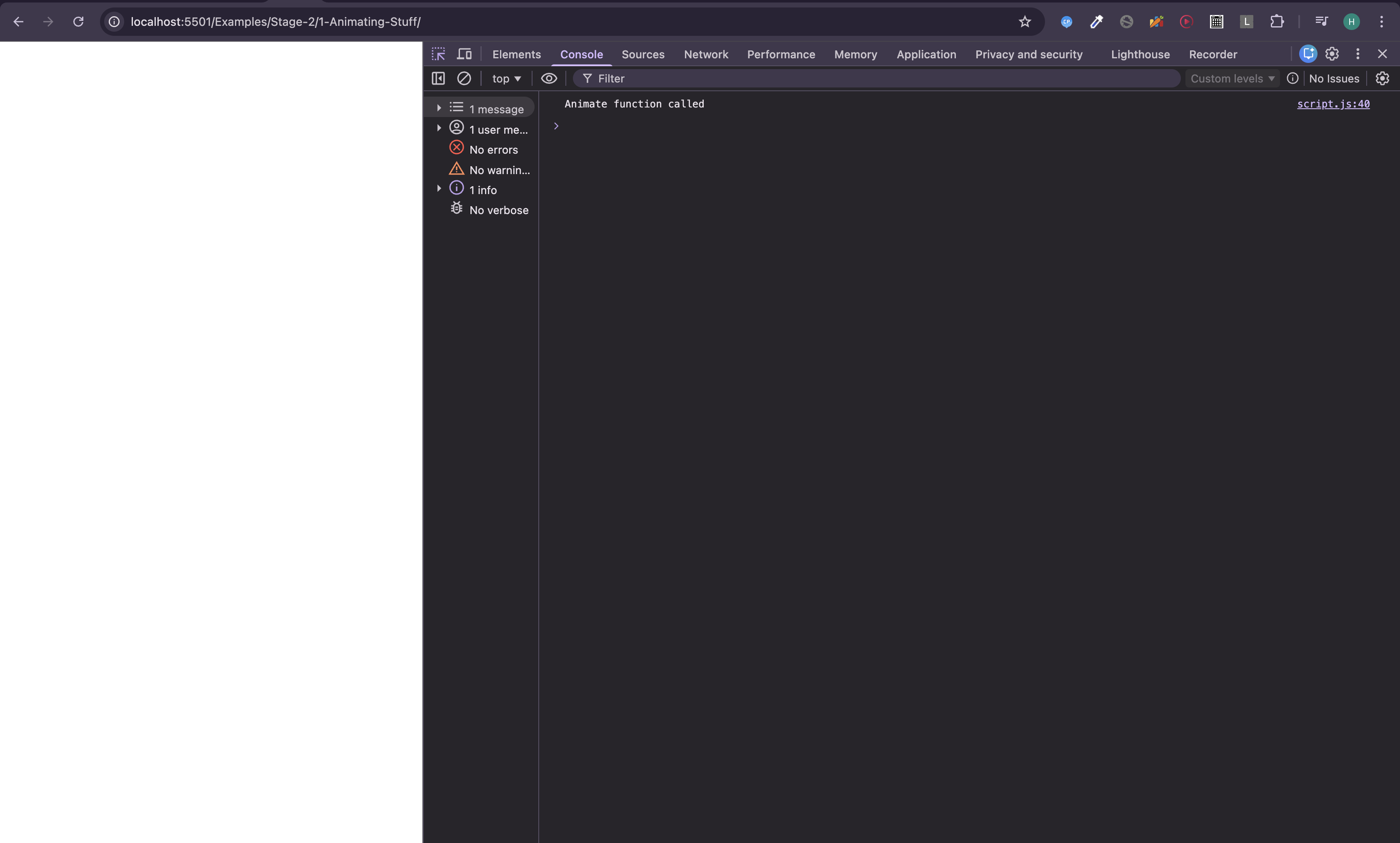
But wait — we wanted a loop, yet the function ran only once. Why?
What requestAnimationFrame actually does
The function requestAnimationFrame tells the browser:
“Before you repaint the next screen frame, run this function once.”
Before every frame repaint? What does that mean?
Here’s something important to understand:
Your screen refreshes about 60 times per second (or whatever your display’s refresh rate is), even if you are doing absolutely nothing and just staring at the screen.
Every refresh is called a frame repaint.
So when you call requestAnimationFrame, you are simply asking the browser:
“Before the next screen refresh, please run this function.”
Since we made this request only once, the browser ran our function only once.
That’s why in the previous example, the animate function executed a single time instead of looping.
How do we get looping behavior?
If we want the function to run every frame, we must ask the browser again after each frame.
In other words, we must call requestAnimationFrame inside the function itself:
function animate() {
  console.log("Animate function called");
  requestAnimationFrame(animate);
}

requestAnimationFrame(animate);
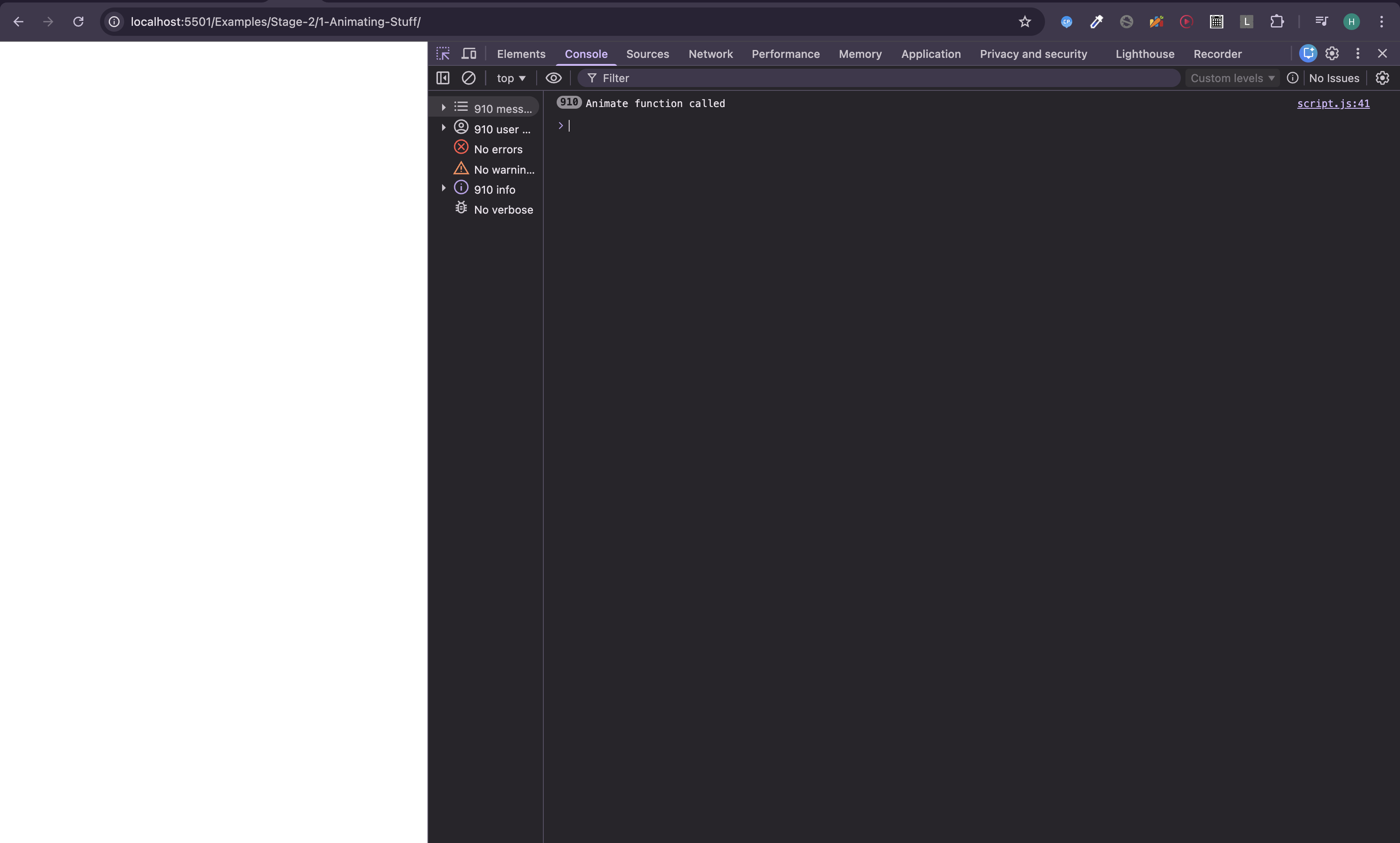
Now the flow becomes
- Browser is about to repaint a frame
- Browser calls animate
- Inside animate, we request the next frame again
- Browser repaints the frame
- Repeat
Now we have to put the code of clearing the previous frame and draw the next frame in the animate function and we are done.
Let's move a point
Now I want you to draw a point using vertex attribute at the center of the screen, we have already done this in previous chapters, so I will not explain it again.
Let's see the script.js:
script.js
const canvas = document.querySelector("canvas");
const gl = canvas.getContext("webgl2");
canvas.height = window.innerHeight;
canvas.width = window.innerWidth;
gl.viewport(0, 0, canvas.width, canvas.height);
gl.clearColor(0, 0, 0, 1);

const vertexShaderSource = `#version 300 es
in vec2 a_position;
void main(){
  gl_Position = vec4(a_position, 0, 1);
  gl_PointSize = 30.0;
}
`;

const fragmentShaderSource = `#version 300 es
precision mediump float;
out vec4 color;
void main(){
  color = vec4(1,0,0,1);
}
`;

const vertexShader = utilCreateShader(gl, gl.VERTEX_SHADER, vertexShaderSource);
const fragmentShader = utilCreateShader(
  gl,
  gl.FRAGMENT_SHADER,
  fragmentShaderSource
);

const program = utilCreateProgram(gl, vertexShader, fragmentShader);

gl.useProgram(program);

let pointPosition = [0, 0];
const a_positionLocation = gl.getAttribLocation(program, "a_position");
const buffer = utilCreateBuffer(gl, pointPosition);
gl.vertexAttribPointer(a_positionLocation, 2, gl.FLOAT, false, 0, 0);
gl.enableVertexAttribArray(a_positionLocation);
gl.clear(gl.COLOR_BUFFER_BIT)
gl.drawArrays(gl.POINTS, 0, 1);
The code above is our starting point now as I said lets animate it.
Starting by wrapping the line numbers 40 and 41 in the animate function like this:
function animate() {
  gl.clear(gl.COLOR_BUFFER_BIT);
  gl.drawArrays(gl.POINTS, 0, 1);
}
now as explained earlier lets use the requestAnimationFrame function to call the animate function repeatedly:
function animate() {
  gl.clear(gl.COLOR_BUFFER_BIT);
  gl.drawArrays(gl.POINTS, 0, 1);
  requestAnimationFrame(animate);
}
requestAnimationFrame(animate);
Now if you run the code you will see the point is still static, to make it move we have to update its position in every frame.
To do that we need to modify the point position each frame. Let's move it forward in x direction by incrementing the x coordinate each frame, if it goes out of the screen that is x coordinate goes over 1.0 we will make it come again to the center of the screen:
function animate() {
  gl.clear(gl.COLOR_BUFFER_BIT);
  pointPosition[0] += 0.005;
  if(pointPosition[0] > 1){
    pointPosition[0] = 0;
  }
  gl.bindBuffer(gl.ARRAY_BUFFER, buffer);
  gl.bufferData(
    gl.ARRAY_BUFFER,
    new Float32Array(pointPosition),
    gl.STATIC_DRAW
  );
  gl.drawArrays(gl.POINTS, 0, 1);
  requestAnimationFrame(animate);
}
requestAnimationFrame(animate);
Once you do this you will see the result as shown below:
1 The window object is the global object in browsers and provides access to browser APIs such as addEventListener, document, requestAnimationFrame, location, etc.
Since window is the global object, its properties and methods can be accessed directly, so you can write requestAnimationFrame(...) instead of window.requestAnimationFrame(...).
2 requestAnimationFrame is non-blocking, meaning it does not block the main thread like a while(true) loop.
It tells the browser: “Before the next screen repaint, run this callback once.”
The callback is executed once per repaint cycle (usually ~60 times per second), and must schedule itself again if continuous animation is needed.
3 The browser inspector (Developer Tools) is a built-in tool that allows you to inspect and debug a webpage by viewing and modifying HTML, CSS, JavaScript, network activity, and performance in real time.
Ways to open it:
- Right-click anywhere on the page and select Inspect
- Chrome / Edge:
Ctrl + Shift + I(Windows/Linux),Cmd + Option + I(Mac) - Firefox:
Ctrl + Shift + I(Windows/Linux),Cmd + Option + I(Mac) - Safari: Enable Develop Menu → Develop → Show Web Inspector