Let's Fix the squishing and stretching of the canvas
Hey curious! I am really happy to see you here as I know most of the people would have quit by the time they reached the 4th or may be 5th chapter but you survived a total of 14 chapters up till now, and I really appreciate that.
I am sure that now you are equipped with enough knowledge that you can make a square of 1 unit side, But I want you to do it on a rectangular canvas.
The two ways you can do it is:
- Using 2 triangles (requires 6 vertices)
- or using triangle strip (requires 4 vertices)
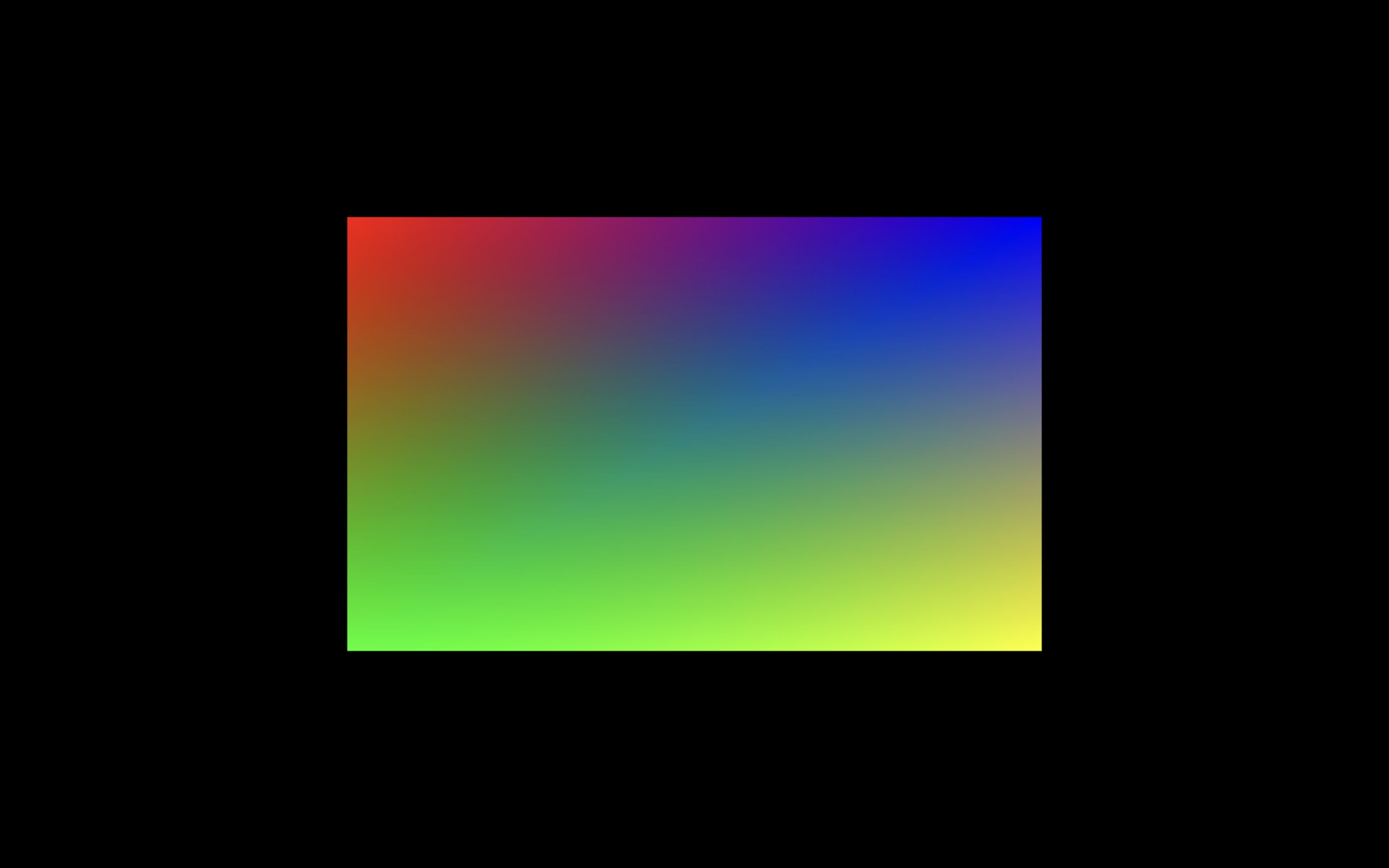
You could simply make it using the four coordinates (-0.5, 0.5), (0.5, 0.5), (-0.5, -0.5), (0.5, -0.5) right? Try it you will get a rectangle not square:
But we want something like this:
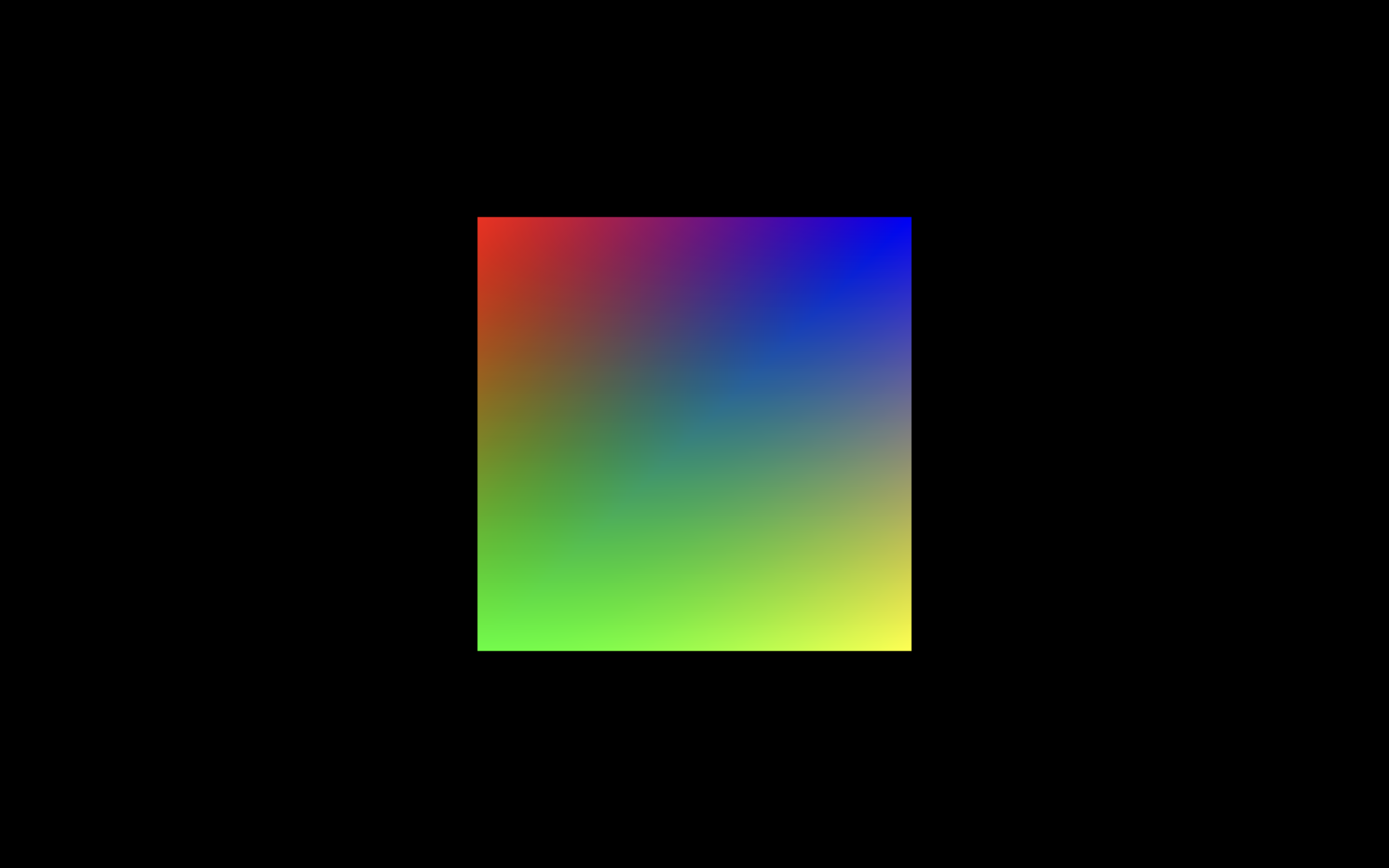
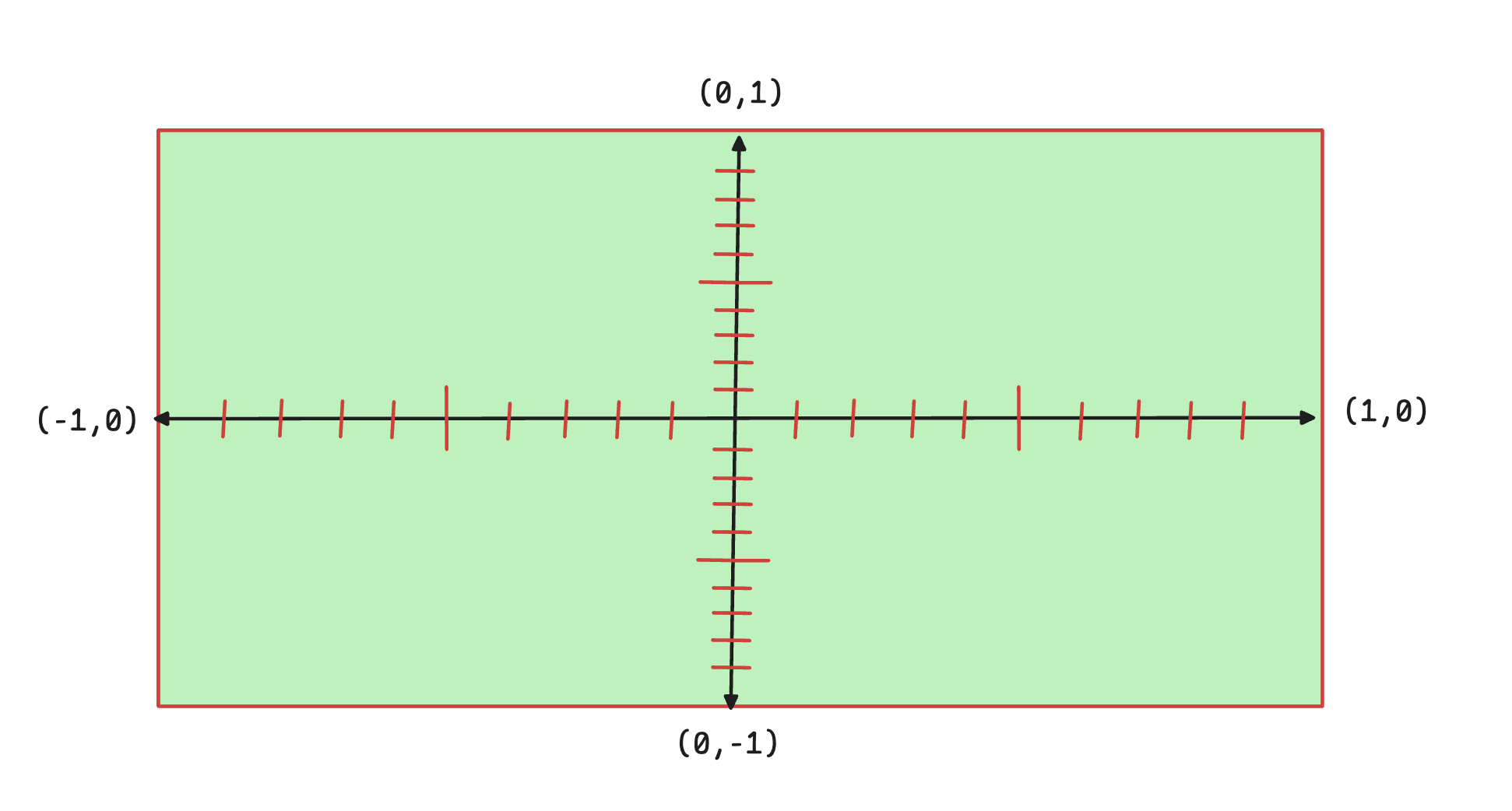
I am sure that you have identified what is the issue, if not, its due to the fact that the webgl coordinate system goes from -1 to +1 regardless of the size of the canvas, recall this diagram from the chapter Coordinate Spaces:
How to solve the issue
Believe me, there are many—literally many—ways to solve this problem. However, the two approaches that immediately come to mind whenever I encounter this situation are:
Modify the vertex coordinates directly in the buffer data
Since the square looks stretched along the x-axis, one way to fix this is to reduce the extent of the x-axis in the vertex data itself.
In other words, instead of letting both axes span the same[-1, +1]range, we shrink the x-axis bounds so that one unit inxcorresponds to the same number of pixels as one unit iny.
This adjustment makes the square appear correctly proportioned on the screen.Keep the buffer data unchanged and apply a correction in the vertex shader
In this approach, we leave the original vertex coordinates untouched and instead adjust the positions inside the vertex shader so that the aspect ratio is corrected during rendering.
It is important to note that you generally want to avoid modifying buffers. Once you are introduced to animation, you will realize that updating buffer data—especially every frame—is computationally expensive and inefficient.
Therefore, we will use the second approach.
Let’s understand it intuitively
We observe that the square appears stretched along the x-axis, even though we define identical bounds (-0.5 to +0.5) on both axes.
This happens because clip space is always square, but the canvas is usually rectangular. When this square space is mapped onto a wide canvas, the x-direction gets stretched more than the y-direction.
If we could somehow pull the x-component of each vertex so that one unit along the x-axis visually matches one unit along the y-axis, the shape would appear as a square again.
Using the aspect ratio
The amount of stretching depends on the aspect ratio of the canvas:
A wider canvas means a larger aspect ratio, which causes more stretching along the x-axis. To counteract this, we scale the x-component of each vertex by the inverse of the aspect ratio inside the vertex shader.
In other words, before placing the vertex in clip space, we slightly pull its x-component closer to the center.
Now the question is: how do we send the aspect ratio to the GPU?
There are a few characteristics of this data:
- It remains constant until the canvas is resized.
- It is the same for all vertices.
Can we use a vertex attribute to send this?
Yes, technically we can—but it would be a waste of memory, as we would be passing the same value for every vertex multiple times in the buffer.
There must be a better way.
The alternative is to use a uniform.
What are Uniforms?
Uniforms are another way to pass data from the CPU to the GPU.
There are two key differences between uniforms and attributes:
- Unlike attributes, their value remains the same across all vertices.
- Uniforms can be used to pass data to both the vertex shader and the fragment shader.
How to use uniforms?
To use uniforms you need to define a variable with the uniform keyword in the shader, like this:
uniform float u_aspectRatio;
This full shader code:
// Vertex shader
const vertexShaderSource = `#version 300 es
in vec2 a_position;
in vec3 a_color;
uniform float u_aspectRatio;
out vec3 frag_color;
void main() {
    gl_Position = vec4(a_position.x/u_aspectRatio, a_position.y, 0, 1);
    frag_color = a_color;
}`;
You can see that I have divided the a_position.x with the u_aspectRatio before setting the gl_Position
Once you include the uniform in the shader you need to get its location as we did for attributes using the gl.getUniformLocation function.
const u_resolution_location = gl.getUniformLocation(program, "u_aspectRatio");
Now we have ready to use functions for setting a value into uniforms, unlike the uniforms where we needed to make buffers and all.
Here we need to pass a float and for float we have gl.uniform1f function to set data into the uniform.
gl.uniform1f(u_resolution_location, canvas.width / canvas.height);
NOTE: Set the uniform data after you have called the gl.useProgram function because it works with sets the uniform of the currently used program if no program is being used the a warning is thrown and nothing gets drawn.
Final Code
script.js
// Step 1: Set the viewport and clear the canvas
const canvas = document.querySelector("canvas");
const gl = canvas.getContext("webgl2");
canvas.width = window.innerWidth;
canvas.height = window.innerHeight;
gl.viewport(0, 0, canvas.width, canvas.height);
gl.clearColor(0, 0, 0, 1);
gl.clear(gl.COLOR_BUFFER_BIT);

// Step 2: Write the shaders
// Vertex shader
const vertexShaderSource = `#version 300 es
in vec2 a_position;
in vec3 a_color;
uniform float u_aspectRatio;
out vec3 frag_color;
void main() {
    gl_Position = vec4(a_position.x, a_position.y*u_aspectRatio, 0, 1);
    frag_color = a_color;
}`;

// Fragment shader
const fragmentShaderSource = `#version 300 es
precision mediump float;
in vec3 frag_color;
out vec4 color;
void main() {
    color = vec4(frag_color, 1);
}`;

// Step 3: Compile the shaders
const vertexShader = utilCreateShader(gl, gl.VERTEX_SHADER, vertexShaderSource);
const fragmentShader = utilCreateShader(
  gl,
  gl.FRAGMENT_SHADER,
  fragmentShaderSource
);
// Step 4: Create a WebGL program
const program = utilCreateProgram(gl, vertexShader, fragmentShader);

// Step 5: Define square vertices and colors using TRIANGLE_STRIP
const vertexCoordinatesAndColors = [
  -0.5,  0.5, 1.0, 0.0, 0.0, // Top-left → Red
  -0.5, -0.5, 0.0, 1.0, 0.0, // Bottom-left → Green
   0.5,  0.5, 0.0, 0.0, 1.0, // Top-right → Blue
   0.5, -0.5, 1.0, 1.0, 0.0, // Bottom-right → Yellow
];

// Step 6: Get attribute locations
const a_position_location = gl.getAttribLocation(program, "a_position");
const a_color_location = gl.getAttribLocation(program, "a_color");

// Step 7: Use the WebGL program and create buffer
gl.useProgram(program);

const u_resolution_location = gl.getUniformLocation(program, "u_aspectRatio");
gl.uniform1f(u_resolution_location, canvas.width / canvas.height);

const buffer = utilCreateBuffer(gl, vertexCoordinatesAndColors);
gl.vertexAttribPointer(a_position_location, 2, gl.FLOAT, false, 5 * 4, 0);
gl.enableVertexAttribArray(a_position_location);
gl.vertexAttribPointer(a_color_location, 3, gl.FLOAT, false, 5 * 4, 2 * 4);
gl.enableVertexAttribArray(a_color_location);

// Step 8: Draw the square using TRIANGLE_STRIP
gl.drawArrays(gl.TRIANGLE_STRIP, 0, 4);